Move /home directory (or any other) to a dedicated partition
Tuesday 20 January 2026 Thibault Debatty 3049 views
https://cylab.be/blog/468/move-home-directory-or-any-other-to-a-dedicated-partition
Sometimes your disk will get full. That’s the sad reality of life. So one solution can be to move a directory, like /home for example, to dedicated partition on another drive. Good news is, you can do this on a running system, without a single reboot…
For this example, I will assume that:
- the directory to move is
/home - the new partition is
/dev/nvme0n1p1
⚠ Don’t forget to modify these to match your directory and partition!
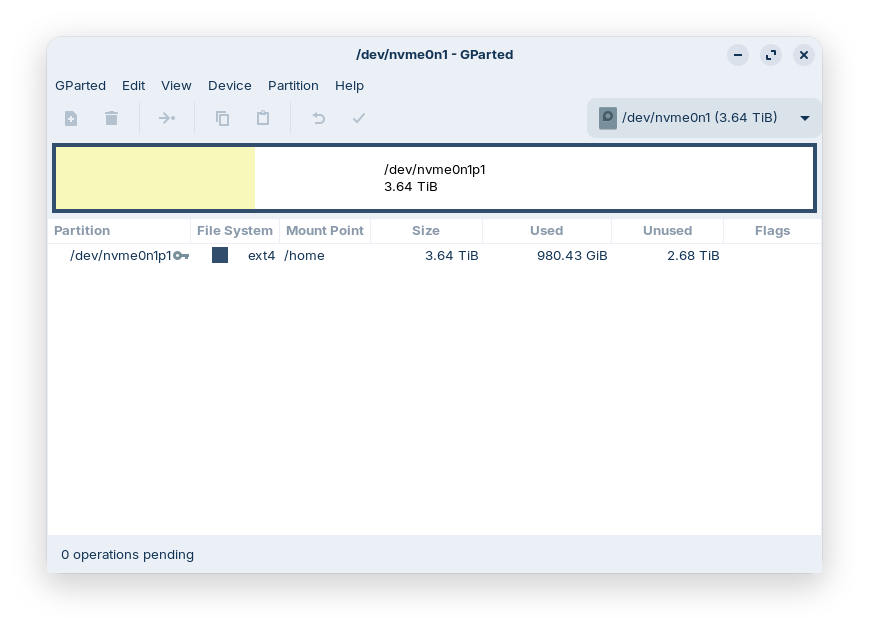
Also, I assume that you already created the new partition using something like GParted.
1. Create the filesystem
If not done yet (with GParted for example), create the filesystem, and don’t forget to indicate the correct partition path:
sudo mkfs.ext4 /dev/nvme0n1p1
2. Copy the files to the new partition
sudo mkdir /mnt/temp
sudo mount -t ext4 /dev/nvme0n1p1 /mnt/temp
and
sudo rsync -av /home/ /mnt/temp/
The -a (archive) option is important as it will preserve file properties (owner, group, creation time etc.)
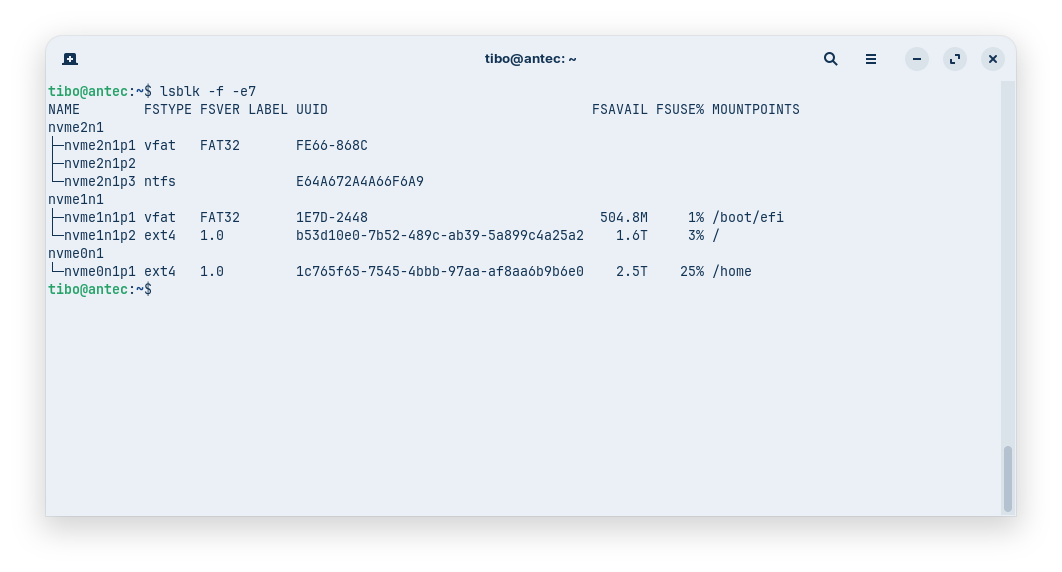
3. Find the UUID of the new partition
lsblk -f -e7
4. Modify /etc/fstab
You can now add the new partition to /etc/fstab, using the UUID of the partition:
UUID=1c765... /home ext4 errors=remount-ro 0 2
As we modified /etc/fstab, we must reload systemd to take modifications into account:
sudo systemctl daemon-reload
5. Mount the new partition and test
And now we can mount the new partition:
sudo mount /home
And test!
6. Remove files from the original partition
Now here is the trick: the files are still present on the original partition (and thus consuming space), but ‘hidden’ under the freshly mounted partition.
The remove them, we can ‘bind mount’ the root directory in /mnt/bind for example, so we can access and delete the files from the original partition:
sudo mkdir /mnt/bind
sudo mount --bind / /mnt/bind
And delete the files:
sudo rm -Rf /mnt/bind/home/*
⚠ You should really start by deleting a single file from the old partition, and check the file is still present on the new partition… to make sure you didn’t mess up with one of the commands!
Moving a directory to a dedicated partition on another drive can be a lifesaver when dealing with a full disk. This process can be accomplished on a running system without the need for a reboot, making it a convenient solution for system administrators and users alike. But remember to carefully follow each step, including modifying the directory and partition paths to match your specific setup, and taking necessary precautions to avoid data loss.
This blog post is licensed under
CC BY-SA 4.0


