How to Reset a Forgotten Root Password on Linux Distros
Wednesday 21 January 2026 Zacharia Mansouri 9000 views
https://cylab.be/blog/477/how-to-reset-a-forgotten-root-password-on-linux-distros
Losing track of a root password can feel genuinely frustrating, whether you’re reviving an old machine or diving back into a forgotten VM. The good news is that Linux’s flexible bootloaders give you an interesting workaround: with physical or console access, you can interrupt the boot sequence, drop straight into a shell, and reclaim the system long before it ever asks for credentials. It’s a clean and fast way to get back in control without reinstalling or starting from scratch.
The Procedure
If you don’t use Full-Disk Encryption (LUKS) nor a Locked Bootloader (GRUB Password), just follow the guide hereunder and you’ll recover that machine in no time!
1. Shut down the device
Ensure the system is completely powered off.
2. Access the GRUB Menu
Start the device again. When you see the GRUB boot menu, press the e key on the keyboard before the system starts booting.
Troubleshooting: VM boots too quickly to see GRUB?
If you are using a Virtual Machine (VirtualBox, VMware, KVM) or a fast-booting UEFI system, the window often disappear in the blink of an eye.
- IOS / Legacy Boot: Click inside the window immediately and hold the
Left Shiftkey.- UEFI Boot: Click inside the window and rapidly tap the
Esckey (do not hold it).
3. Edit the Boot Parameters
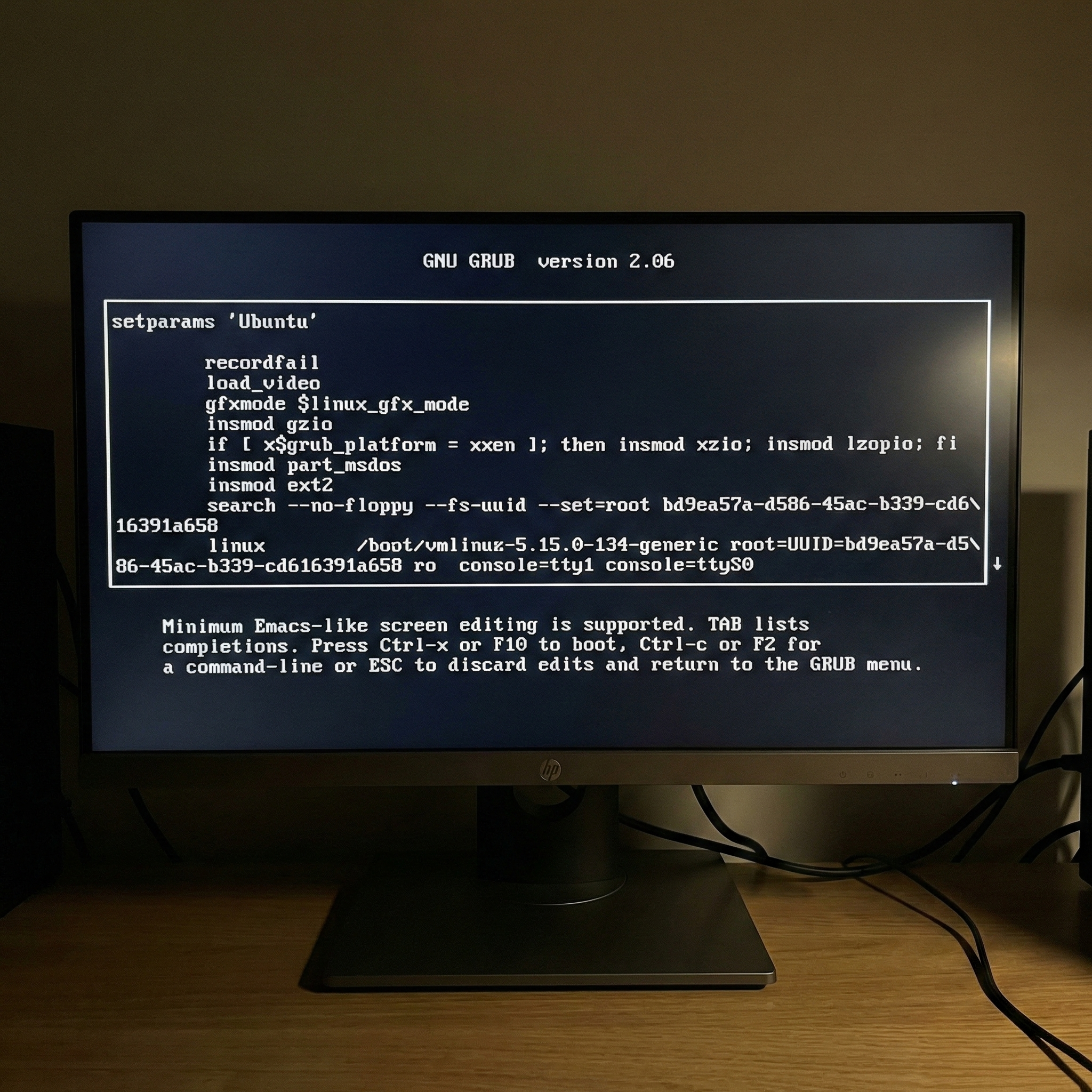
In the GRUB boot options, use the arrow keys to scroll down and locate the line that begins with linux (or linux16 / linuxefi).
- Move the cursor to the end of this line (typically right after
ro quiet). - Delete everything after
ro quietorro(if there is noquiet). - Change
ro(read-only) torw(read-write). - Append the parameter
init=/bin/bashto the end of the line.
The line should look like this:
linux ... rw init=/bin/bash
4. Boot the modified configuration
Press Ctrl+x or F10 to boot.
5. Reset the Password
You will see a root command prompt (usually indicated by #).
Set the password for the root user (or any other user with root access):
passwd root
(Enter the new password twice when prompted)
Troubleshooting: Filesystem is not writable.
If the filesystem is not writable:
- Remount it manually with the command:
mount -no remount,rw /- Then try again the
passwd <user>command from above.
6. Reboot
Once the password is changed, reboot the system.
reboot -f
Alternatively, if that command hangs:
exec /sbin/init
Congratulations, you successfully updated a password through the GRUB!
Why this might not work (Security & Encryption)
The method above relies on having unrestricted physical access to the machine. Here are three common security configurations that will prevent this method from working.
Full-Disk Encryption (LUKS)
If the system uses Full-Disk Encryption (FDE), the hard drive is locked before the operating system even loads.
- The Problem: The
init=/bin/bashcommand is stored inside the encrypted partition. You cannot access/bin/bashor/etc/shadow(where passwords are stored) without first unlocking the drive. - The Limitation: If you have lost the LUKS encryption passphrase, there is no way to reset the root password because you cannot access the filesystem at all.
Locked Bootloader (GRUB Password)
Administrators can protect the GRUB menu itself with a password in order to prevent unauthorized edits.
- The Problem: When you press
eto edit the boot parameters, GRUB will prompt you for a username and password. Without these credentials, you cannot addinit=/bin/bash. - The Limitation: You cannot bypass the bootloader unless you boot from external media (Live USB), mount the drive, and edit the
grub.cfgfile manually.
Conclusion
Regaining root access through GRUB is a powerful skill that can turn a locked‑out system from a crisis into a quick fix, sparing you from reinstallations or data loss. At the same time, the very simplicity of this recovery method shows an important facet about security: anyone with physical access to a machine can often gain full control. Consider this not not only as a rescue technique but also as a reminder to strengthen your defenses, using tools like full‑disk encryption to ensure that you alone hold the keys to your data.
References
- https://en.wikibooks.org/wiki/Linux_Guide/Reset_a_forgotten_root_password
- https://www.gnu.org/software/grub/manual/grub/grub.html
- https://docs.redhat.com/fr/documentation/red_hat_enterprise_linux/7/html/system_administrators_guide/sec-protecting_grub_2_with_a_password
- https://wiki.ubuntu.com/RecoveryMode
- https://wiki.archlinux.org/title/GRUB
This blog post is licensed under
CC BY-SA 4.0


