Ditch the bloat: lightweight build pipeline with esbuild
Tuesday 1 September 2026 Thibault Debatty 1075 views
https://cylab.be/blog/516/ditch-the-bloat-lightweight-build-pipeline-with-esbuild
We’ve all been there: you save a file, and then you wait several seconds for your bundler to catch up. As projects grow, these “build pauses” add up, breaking your development flow. If you are still relying on legacy builders like Webpack or Laravel Mix, you are likely leaving massive amounts of performance on the table. esbuild changes the game by leveraging Go’s extreme speed to bundle JavaScript and CSS in milliseconds rather than seconds. In this post, I’ll show you how to move away from heavy configurations and set up a lightweight, highly customizable build script that handles everything including SASS compilation.
For the examples below we assume a standard directory structure similar to Laravel. Don’t forget to update your path if needed.
Why not just use Vite?
If you are moving away from Webpack, you might be tempted to jump straight to Vite. While Vite is incredible for Single Page Applications (SPAs), it brings a heavy “Dev Server” mental model.
This custom esbuild approach is specifically designed for Server-Side Rendered (SSR) apps (like Laravel or Django). It provides:
- Zero Overhead: No dev server to manage; just compile and go.
- Absolute Control: A simple Node script that handles exactly what you need and nothing more.
- Extreme Speed: Near-instantaneous rebuilds during development.
Quick Start: Testing the Speed
First, install esbuild and run a test bundle:
npm install --save-dev esbuild
./node_modules/.bin/esbuild resources/js/app.js --bundle --outfile=public/js/app.js
If you see an almost instantaneous completion, you’ve just experienced the power of Go-based bundling.
esbuild build script
While the CLI is great for quick tasks, a dedicated script handles SASS, complex loaders, and distinct build pipelines in one command. In the example below we will create a build script that:
- allows running esbuild in either normal (one-shot) or watch mode
- allows building javascript and sass (CSS) resources
- uses loaders to handle other types of resources (like images or fonts) referenced in your CSS or JS code
But first, as esbuild does not natively support SASS, we must install the appropriate plugin:
npm install --save-dev esbuild-sass-plugin sass
esbuild.mjs
import * as esbuild from 'esbuild';
import { sassPlugin } from 'esbuild-sass-plugin';

/**
 * Note: Ensure you have 'sass' installed: npm install --save-dev sass
 */

// 1. Check if the --watch flag was passed in the command line
const isWatchMode = process.argv.includes('--watch');

// 2. Build configuration

// Shared loaders for both JS and CSS pipelines
const assetLoaders = {
    '.woff': 'file',
    '.woff2': 'file',
    '.eot': 'file',
    '.ttf': 'file',
    '.png': 'file',
    '.jpg': 'file',
    '.svg': 'file',
    '.gif' : 'file',
};

//Configuration for the JavaScript Build Task
const getJsConfig = () => ({
        entryPoints: ['resources/js/app.js'],
        bundle: true,
        outdir: 'public/js',
        minify: true,
        sourcemap: true,
        entryNames: '[name]',
        loader: { ...assetLoaders, '.js': 'jsx' }
    });


// Configuration for the SASS Build Task
const getSassConfig = () => ({
        entryPoints: ['resources/sass/app.scss'],
        bundle: true,
        outdir: 'public/css',
        minify: true,
        sourcemap: true,
        entryNames: '[name]',
        plugins: [
            sassPlugin({
                // Silences warnings from dependencies (e.g., Bootstrap)
                quietDeps: true,
                // Silences specific deprecation types in your own code
                silenceDeprecations: [
                    'import',
                    'color-functions'
                ]
            })
        ],
        // Add loaders here as well so SASS @font-face rules can find them
         loader: assetLoaders
    });

async function runBuild() {
    try {
        if (isWatchMode) {
            console.log('👀 Watch mode enabled. Waiting for changes...');

            // We use separate contexts to prevent plugin interference
            // between the SASS compiler and the JS transformation.
            const jsContext = await esbuild.context(getJsConfig());
            const sassContext = await esbuild.context(getSassConfig());

            await jsContext.watch();
            await sassContext.watch();

            console.log('✨ Watching for changes in resources/...');
        } else {
            console.log('🚀 Running one-time build...');
            // We use Promise.all to run both builds in parallel for even more speed
            await Promise.all([
                esbuild.build(getJsConfig()),
                esbuild.build(getSassConfig())
            ]);

            console.log('✅ Build completed successfully!');
        }
    } catch (error) {
        // Improved error logging for better debugging
        console.error('\n❌ Build failed!');
        console.error(error);
        process.exit(1);
    }
}

runBuild();
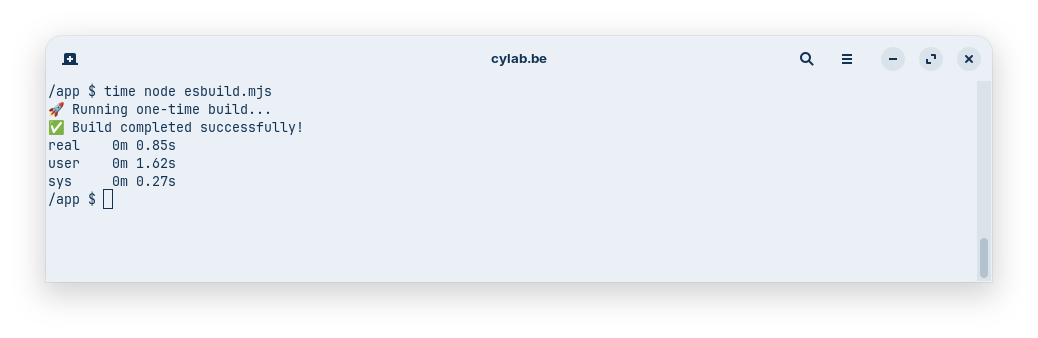
You can now run your build with:
node esbuild.mjs
or
node esbuild.mjs --watch
to watch for changes and rebuild automatically.
npm build scripts
As usual you can add the appropriate commands to package.json
"scripts": {
  "build": "node esbuild.mjs",
  "watch": "node esbuild.mjs --watch"
}
which will allow you to run the build and watch scripts with:
npm run build
or
npm run watch
References
This blog post is licensed under
CC BY-SA 4.0


