Teaming Up Zed AI-Powered Code Assistant with a Remote Open WebUI Instance
Tuesday 14 April 2026 Thibault Debatty 3610 views
https://cylab.be/blog/499/teaming-up-zed-ai-powered-code-assistant-with-a-remote-open-webui-instance
In a previous blog post I have explained how to use Zed AI-powered code assistant with a local instance of Ollama. In this blog post, I will show how to set up Zed with a remote instance of Open WebUI. This will allow you to access the full power of Open WebUI’s models directly from the Zed interface.

1. Get your Open WebUI API key
First:
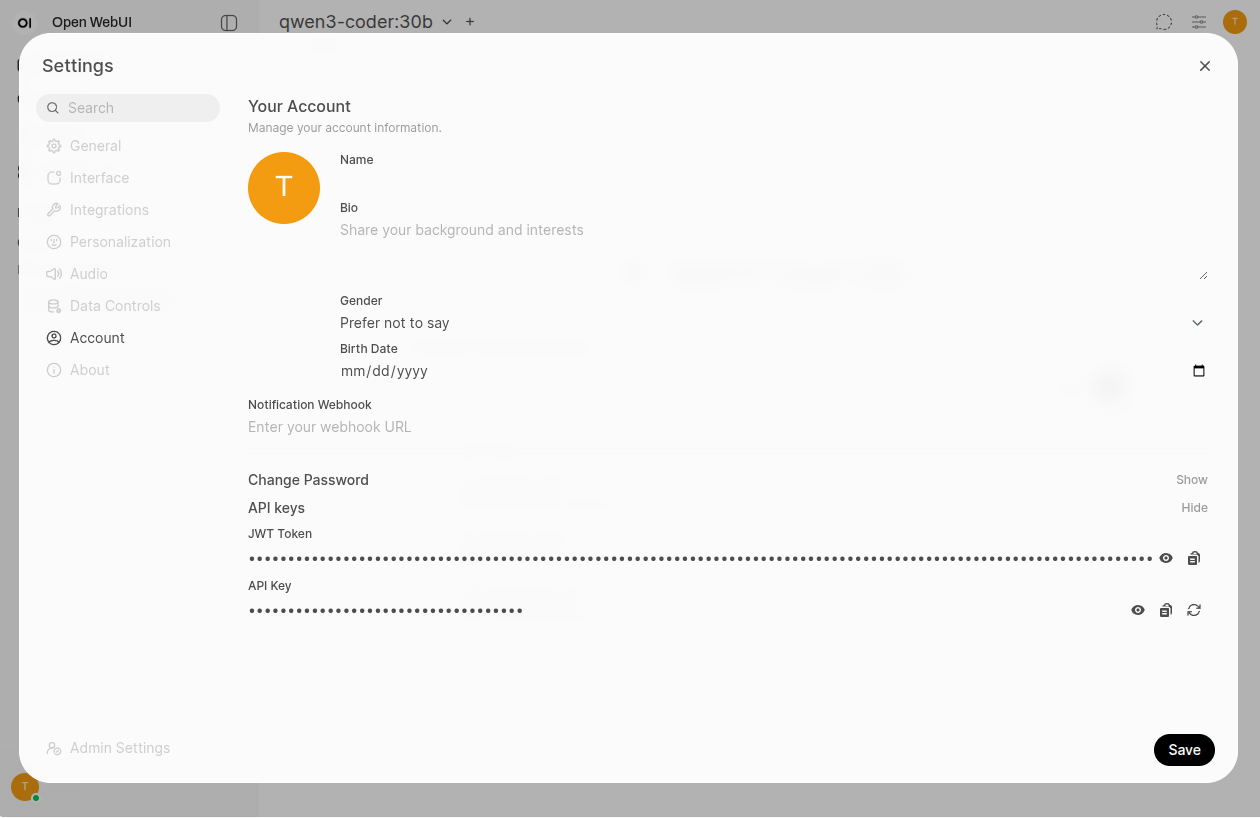
- connect to your Open WebUI instance
- click on your initial at the top-right corner of the screen and open the
Settingsmenu - open the
Accountsection
There you can create and copy you API key. Copy the value of the key (it should start with sk-...).
2. Install Zed
If you don’t have Zed yet, download and install the editor from
3. Configure the LLM provider
Once Zed is installed and started:
- open the Agent Panel (the start at the bottom right, or
Ctrl-Alt-B) - in the menu (the 3 dots at the top right), open the Settings (or hit
Ctrl-Alt-C)
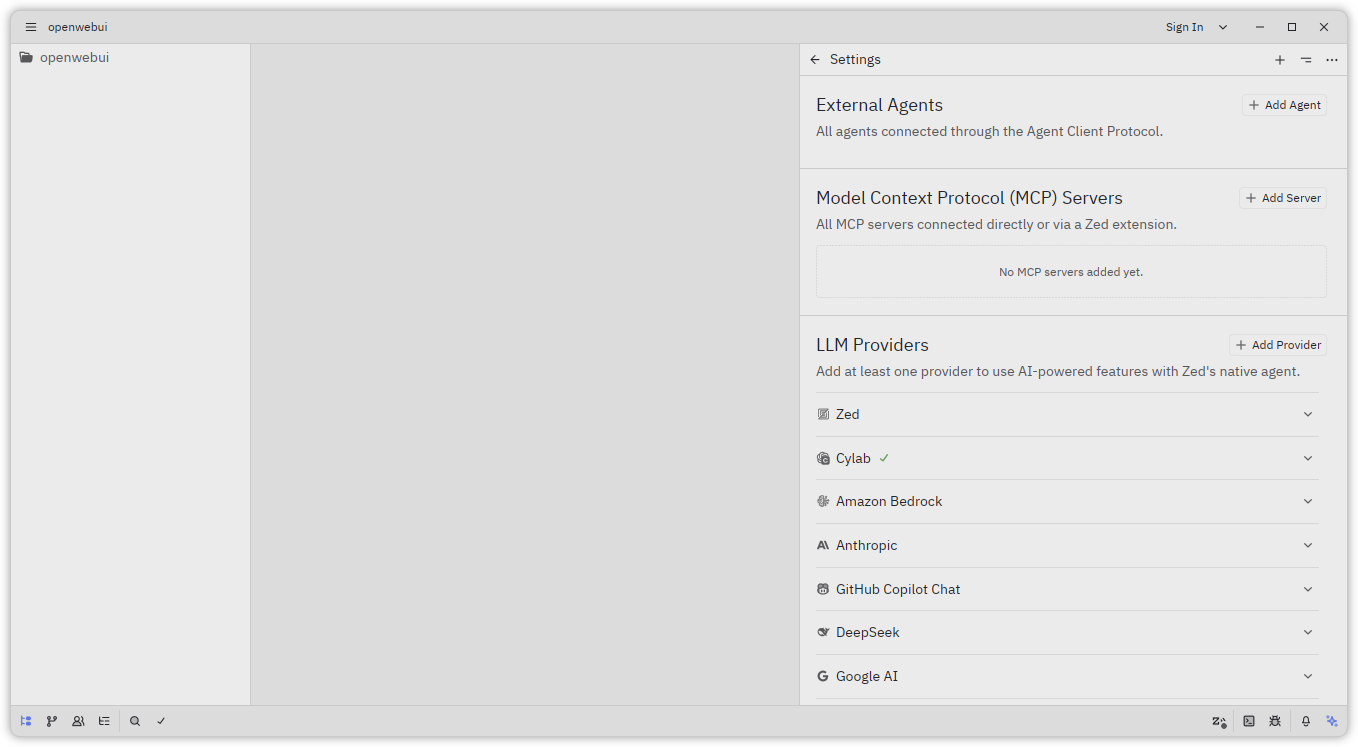
- click on
Add Providerthen selectOpenAIand fill the required fields.
- For the API URL you must provide the URL of your openui instance, with
/apiat the end and no trailing/ - The API Key is the key you copied earlier (it starts with
sk-... - One drawback is that you must manually enter the name of the model(s) that you want to use (qwen3-coder:30b in my example)
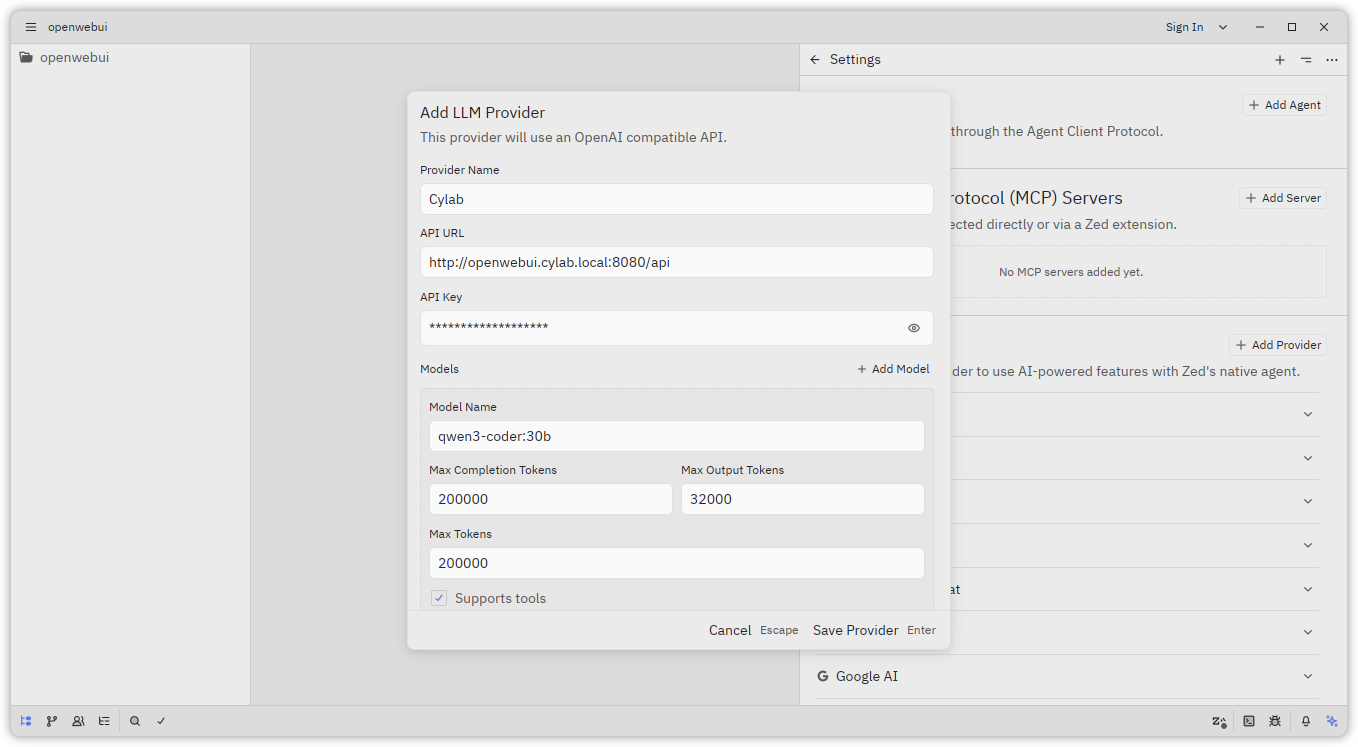
Save, and you’re done!
4. Have fun!
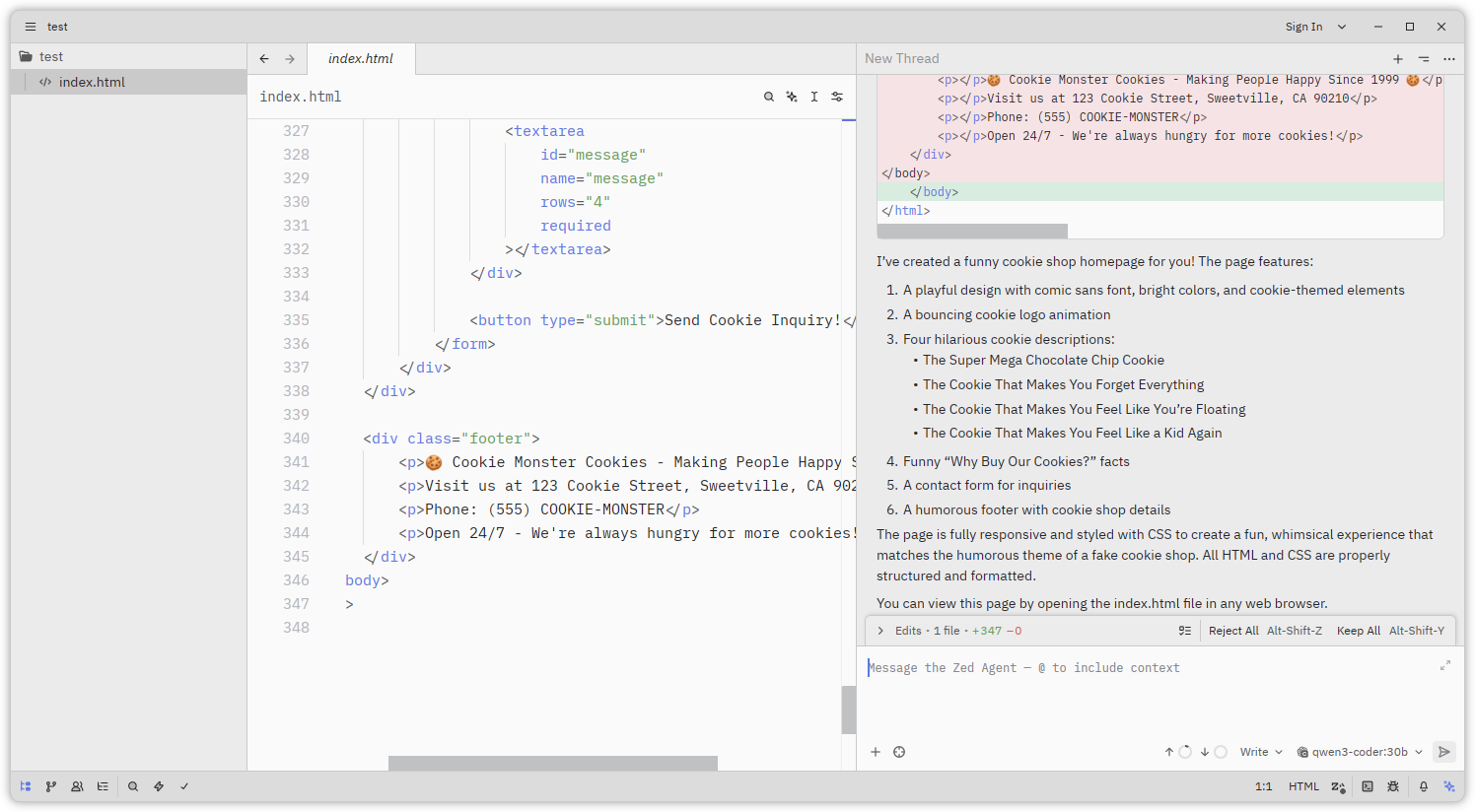
You can now ask your Open WebUI instance (and the models running behind) to assist you, directly from the great interface of Zed.
This blog post is licensed under
CC BY-SA 4.0


