Avoid credential leakage with Pass: the standard unix password manager
Friday 17 April 2026 José Carrasquel Vera 2477 views
Linux Sysadmin Secure Software Development Git Tools Deployment bash
https://cylab.be/blog/503/avoid-credential-leakage-with-pass-the-standard-unix-password-manager
According to GitGuardian, almost 24M secrets were leaked in 2025 in public GitHub commits. Moreover, they claim that 15% of commit authors have leaked secrets, that’s more than 1 out of 7 authors!
A realistic example
Even if you follow documentation, you are still at risk of being part of that 15%. As simple example, take the bpg/proxmox Terraform provider’s documentation.
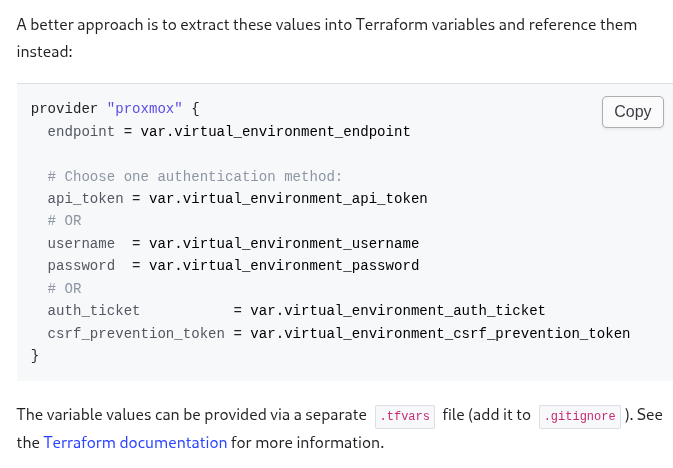
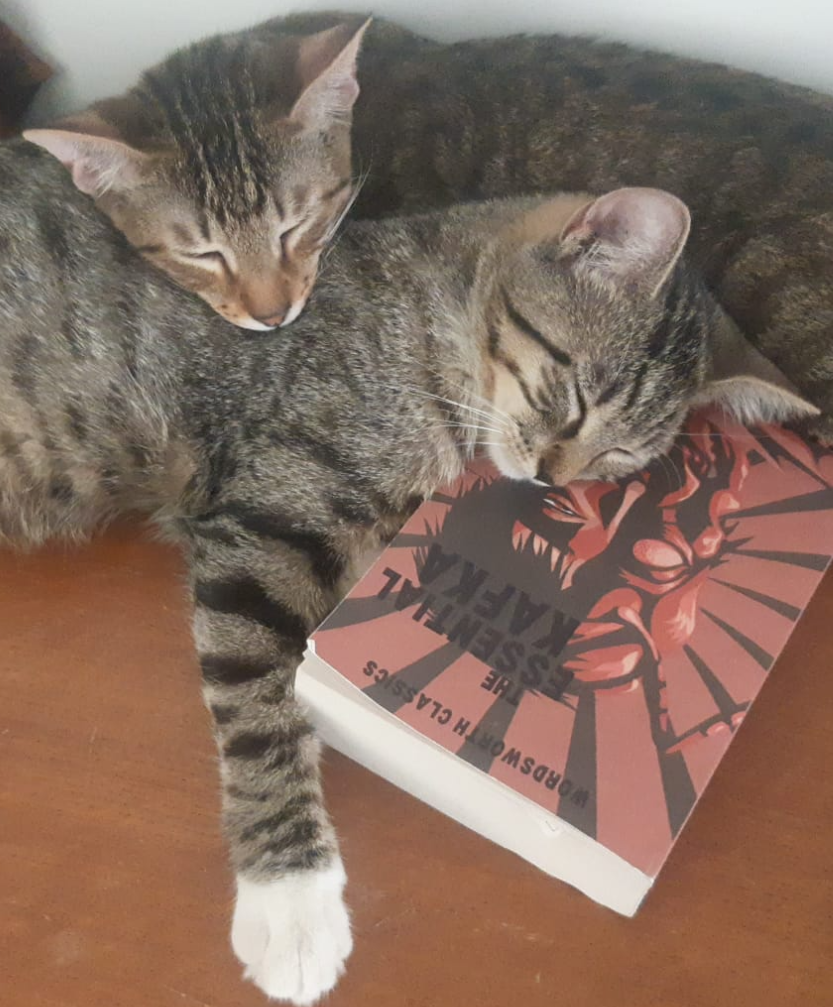
This method does avoid adding the proxmox credentials to your commit, but it does store them in plain text. Like this, anyone with access to your local data can steal your credentials. But this practice introduces a much serious risk: Suppose a junior developer pushes a quickfix that creates a conflict with the .gitignore file. He quickly resolves it and, in doing so, removes the line that includes the .tfvars file. He might not notice anything strange as he perhaps does not have the .tfvars file locally. Due to clumsy reviewing, this commit eventually reaches your working branch, in which you are changing the spelling of your documentation form American to British English (I wonder why 😄). After this, you git add . and see your console fill up with files, one of them being .tfvars, but you don’t notice it. You finish your day with git commit and git push. When you reach home, your cats greet you sleeping on a Kafka (not kafka, both awesome btw) Essentials book, which you inevitably interpret as a “Welcome to the 15% club”.
Enter Pass: the standard unix password manager
We are used to password managers in the form of GUIs or browser extensions. This makes sense because most people use credentials on browsers. But few of us are lucky enough to also have to use credentials in command line. This is where Pass: the standard unix password manager comes in.
Installation and setup
Their website is quite clear. I’ll install in Fedora:
$ sudo dnf install pass
In order to initialize your password store you need a gpg key. You can check whether you have one by running gpg2 -k for instance. If you don’t have one, you can create one by following this.
You can now initialize your password store:
$ pass init your-gpg-id
Adding and retrieving secrets
Now you can add your Proxmox API token
$ pass insert proxmox-api_token
Enter password for proxmox-api_token:
Retype password for proxmox-api_token:
$ pass
Password Store
└── proxmox-api_token
$ pass proxmox-api_token
jose@pve!tf=will-never-be-leaked-again
Using your stored credentials
Coming back to our example, following the documentation
The command outputs a table with the token ID and secret. Concatenate them into a single string (e.g., user@realm!tokenid=secret) for the api_token field or the PROXMOX_VE_API_TOKEN environment variable:
We can use the PROXMOX_VE_API_TOKEN environment variable to pass our credentials to Terraform. There is no need to export it. We can define it such that it is only seen by Terraform
$ PROXMOX_VE_API_TOKEN=`pass proxmox-api_token` terraform plan
Ok!
We can even use aliases
$ terraform plan
│ Error: Unable to create Proxmox VE API credentials
$ alias terraform='PROXMOX_VE_API_TOKEN=`pass proxmox-api_token` terraform'
$ terraform plan
Ok!
⚠ Warning: make sure you use single quotes
'and not double quotes". If you use double quotes,pass proxmox-api_tokenwill be replaced by your API token before executing the alias command. Like this, running$ aliaswill show your credentials.
What if the tool doesn’t support passing credentials trough environment variables?
Most modern tools do. But if they don’t, there are other methods. The simplest one is to pipe the output of our pass command through stdin.
A different method is through files. To illustrate this, we’ll use ansible-playbook’s --vault-password-file option. We can use it to point to a text file containing your credentials, but we can do even better by pointing it to an executable bash file
#!/bin/sh
pass ansible-vault-password
Thanks
to Boris André for showing me pass and its usage with ansible-playbook many years ago.
This blog post is licensed under
CC BY-SA 4.0


